


 Technology enthusiasts may be happy to learn that Microsoft unveiled the Windows 8 Release Preview on Thursday, May 31, beating its own early June target. But if you’re a home theater enthusiast, you may be wondering where Media Center went.
A few weeks ago on Entertainment 2.0, we posited that the Windows 8 Release Preview might not actually include Media Center, and that is indeed the case. Remember: Media Center won’t be in the box when you first purchase Windows 8, so it makes sense that it wouldn’t be included in the installation for the Release Preview. But you can install it. Microsoft’s FAQs provide instructions for doing just that, but MVP Barb Bowman points out that these instructions may not work exactly as documented.
For better results, you may just want to launch the classic control panel and select Add Features to Windows from there (you can just search for it by typing Add in the Control Panel search box).
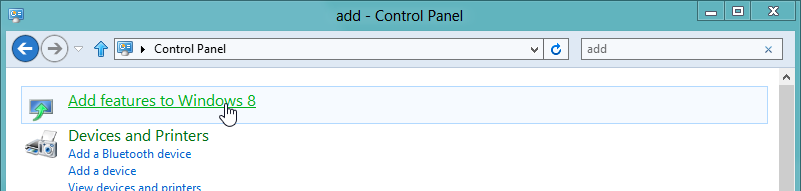
After that, just follow the instructions as documented: specify that you already have a product key, enter the key provide on Microsoft’s FAQs page (MBFBV-W3DP2-2MVKN-PJCQD-KKTF7), and accept the terms.
When your computer restarts, Windows Media Center will be pinned to your Start screen.
Resources
- Get the bits for the Windows 8 Release Preview
- Microsoft’s Windows 8 Release Preview FAQs
- Barb’s Connected World


[…] Add Windows Media Center to Window 8 Release Preview […]