


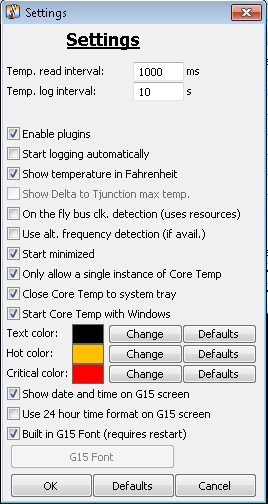
 If you’re the type of person who actually built a home theater PC, then you probably like to keep an eye on all the vital statistics of the computer. Core Temp is a windows application that will monitor and display the temperature of each core of your processor, along with the frequency. The creator of this free application has made available a Windows Media Center add-in named CoreTempMC. To use it you’ll need to head over to the product’s website and download Core Temp first. In order for the add-in to work you will need to have Core Temp running. The easiest way to get this all setup is to go into the applications settings screen an ensure that the following settings are all enabled: Enable plugins, Start Core Temp with Windows. Optionally you may also want to enable Start minimized, Close Core Temp to system tray, and Show temperature in Fahrenheit.
Once Core Temp is setup, install the Windows Media Center add-in, CoreTempMC. Once installed you will find a new tile in the Extras Library titled Core Temp MC.
|
|
 |
via: The Green Button


[…] Core Temp MC via DMZ […]