


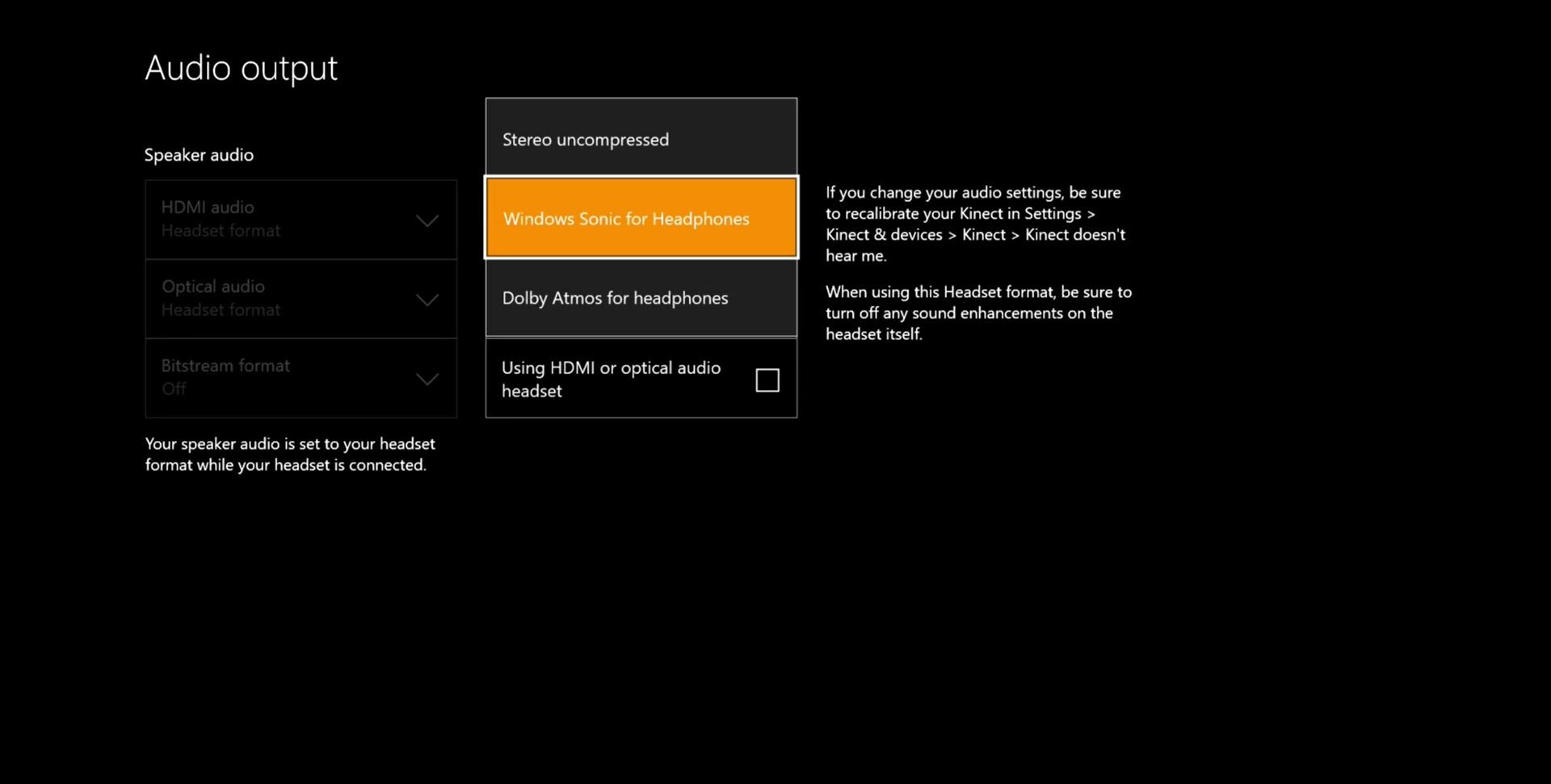
 The Windows 10 Creators Update launched on PCs and the Xbox One last month. When it arrived on PCs it brought with it a new audio setting called Spatial Sound. This new feature includes two new audio processors called Windows Sonic and Dolby Atmos for Headphones.
Windows Spatial Sound options attempt to create a surround sound experience using ordinary stereo headphones. The latest update for the Xbox One has brought Spatial Sound with it. It won’t be obvious that you have it, but you definitely do. This isn’t just an Insider Preview feature.
If you play games with a stereo headset, you are definitely going to want to enable Windows Sonic or Dolby Atmos for Headphones. We tried it out with Overwatch, and we found that it made a significant difference when trying to locate where sounds were coming from within the game. To be successful in first-person shooters you need to quickly locate the enemies, so many gamers have been using surround-sound headsets for years to get a competitive advantage. With these new audio options you can get a similar advantage even if your headset cost a fraction of the high-end surround sound headsets. In fact, many people have reported that using Windows Sonic in place of their headsets built-in surround sound functionality actually sounds better.
Windows Sonic is completely free, and it’s simple to enable. Dolby Atmos for Headphones will set you back $15, but it is offered with a free trial. Given that they are both free, at least to try, there is absolutely no reason not to try them for yourself. Make sure to try them both out in a variety of games. Both Windows Sonic and Dolby Atmos are sure to perform different across different games. Check them out, then determine which works best for you and your favorite games.
There is one thing to note with Windows Sonic. Some users have reported that they’ve experienced some crackling with system sounds. Simply disabling, and then re-enabling, Windows Sonic has temporarily alleviated the problem though.
If you decide to try out Dolby Atmos for Headphones, you will first be redirected to the Xbox Store. Again, there’s a free trial, but if you want to keep it you’ll have to fork over $15.
To enable either Windows Sonic or Dolby Atmos for headphones, follow these simple instructions.
- Click the Xbox Guide button to open the side panel.
- From the bottom option, select All settings.
- Select Display & Sound.
- Click on Audio output.
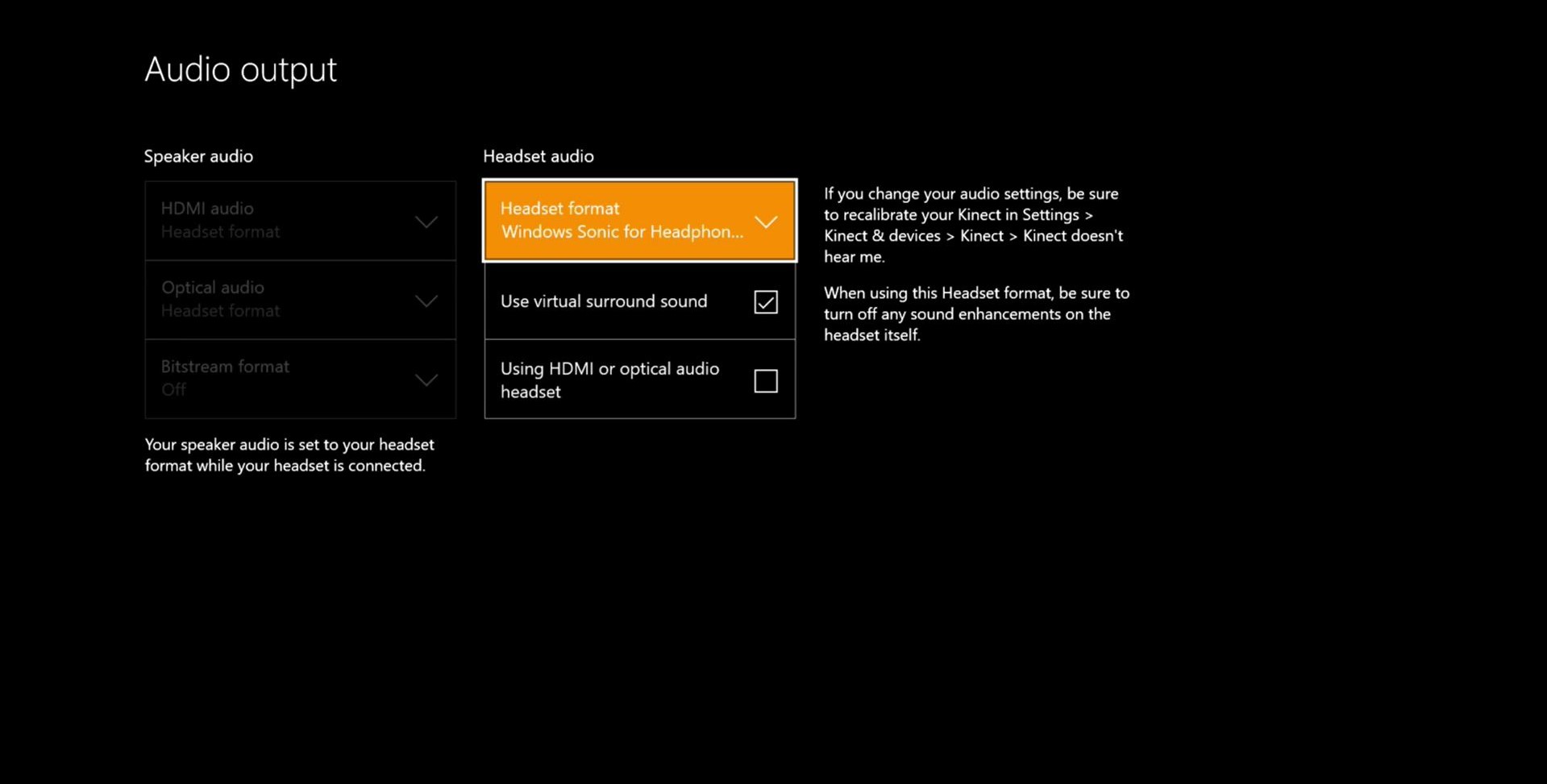
- In the middle of the page, there’s a section called Headset audio. Change it to either Windows Sonic for Headphones or Dolby Atmos for headphones.


The app is glitchy – it will only let you use Dolby Atmos with headphones once. You can’t select this option the next time you power up your Xbox. The only way to use it again in the subsequent session is to delete and do a clean reinstall. It will work ONLY for that session as long as you keep your console on. Really annoying issue. MS and Dolby have already been made aware.
You’re right in that there have definitely been issues. Fortunately, Microsoft has been releasing bug fixes to spatial audio in the Insider Preview builds. I’ve mostly been using Windows Sonic, and their patches have resolved all the issues I was experiencing.
As to the Dolby issues, those may also be resolved in Insider builds too. The other thing worth noting is that at least that came with a free trial.
There aren’t any bugs that come to mind with regard to WIndows Sonic although there’s occasionally crackling and popping sounds that ruin the experience. This crackling/static sound is actually very noticeable in Atmos.
What’s an Insider build? You mean like the preview version of a console update? I have the latest dash on my console; are you saying this issue may be resolved with the next system update?
Well, the trial only lasts 30 days, and even then you have to reinstall it EVERY time to allow the console to check the Dolby Atmos with headphones option. There is no other workaround.